The short answer
To create a useful PowerPoint with AI, start with the audience and the decision you want the deck to support. Supply your source material and template, agree the outline, then ask for an editable PPTX. Check every slide for factual accuracy, readable charts, correct fonts and content that fits.
Read the full guide- Give it inputs A brief, source material and your template.
- Build in stages Outline first, then editable slides.
- Review the file Facts, charts, text fit and accessibility.
Start with the story, not the slides
AI can make a first draft of a deck quickly. The harder part is deciding what belongs in it. Before asking for slides, write down who the audience is, what they already know and what you want them to understand or decide.
Give the tool a brief, not just a topic. A useful brief includes the audience, purpose, length, required evidence and tone.
Create an outline for an eight-slide presentation for our leadership team. The purpose is to decide whether to run a small AI pilot. Use only the attached source material. Separate evidence from assumptions, identify missing information and end with a proposed decision. Do not create the slides until we have agreed the outline.
How do you create a PowerPoint presentation with AI?
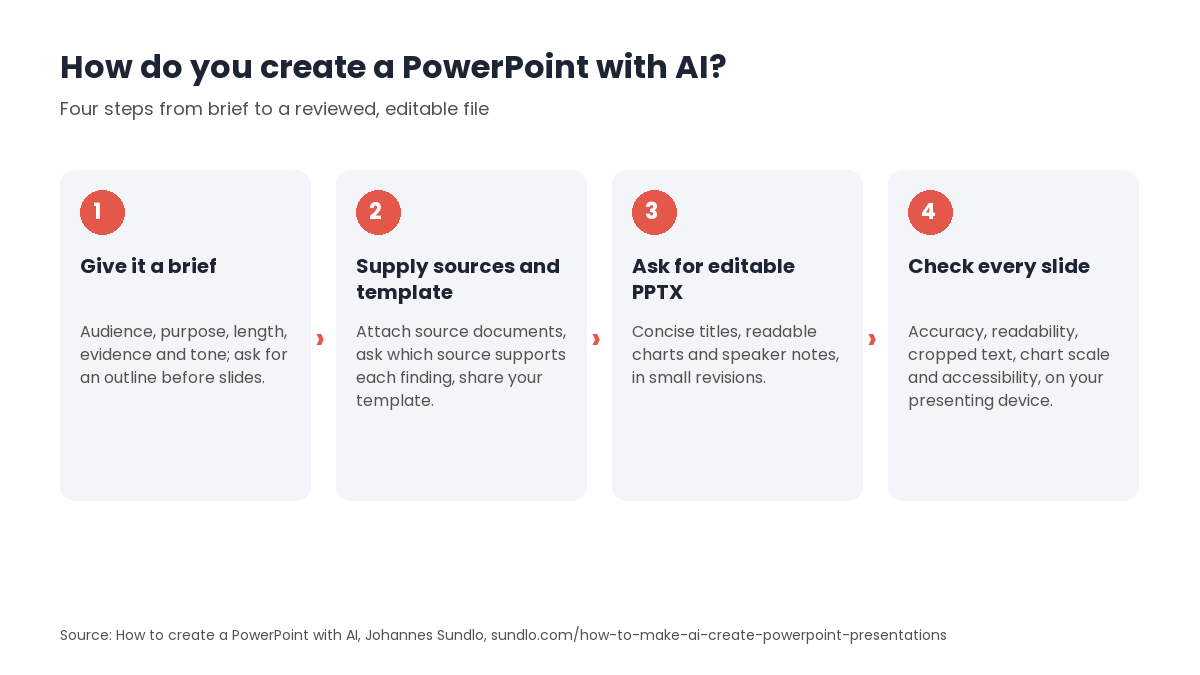
How do you create a PowerPoint presentation with AI? Start with the audience and the decision the deck should support, then work in four steps. First, give the tool a brief rather than a topic: audience, purpose, length, required evidence and tone, and ask for an outline before any slides are made. Second, attach the source documents or spreadsheet, ask it to show which source supports each finding, and supply your template with the layouts, colours and fonts that matter. Share only what you are allowed to, and remove unnecessary personal data. Third, once the outline works, ask for an editable PPTX with concise titles, readable charts and speaker notes; Claude supports PowerPoint file creation, as do PowerPoint with Copilot, Canva and Gamma. Fourth, check every slide for accuracy, readability, cropped text, chart scale and units and accessibility, then open the file on the device you will present from. An exported file is a draft until you have reviewed it.
See also the free AI course for HR and the comparison of AI courses for HR professionals.
Supply your source material and template
Attach the documents, spreadsheet or notes the presentation should use. Ask the AI to identify the key findings and show which source supports each one. Check the calculations yourself, particularly where percentages, dates or comparisons affect the decision.
If you have a PowerPoint template, supply it and specify the layouts, colours and fonts that matter. Then inspect the result, because there is no guarantee that every detail of the template survives the export.
- Use only information you are allowed to share with the tool.
- Remove unnecessary personal or confidential data.
- Label figures clearly, including units and the period they cover.
- Identify material that is a hypothesis rather than a verified fact.
How do you generate an editable PowerPoint file?
Once the outline works, ask for an editable PPTX, with concise slide titles, readable charts and speaker notes where useful. Work in small revisions: improve the argument first, then the visual details.
Claude supports PowerPoint file creation. Availability and controls can change, so check Anthropic’s file-creation guide for the current setup. Other tools, including PowerPoint with Copilot, Canva and Gamma, offer their own workflows; test the export in the software you will present from.
Turn the approved outline into an editable PowerPoint. Use the attached template where possible. Keep one main message per slide, label chart axes and units, and add source references to the notes. Flag any unsupported claim. Return the PPTX and a short list of items I should verify.
How do you keep confidential data out of an AI-generated presentation?
How do you keep confidential data out of an AI-generated presentation? Share only information you are allowed to give the tool, remove unnecessary personal or confidential data before you attach anything, and check the export before it leaves your hands. In practice: strip details the deck does not need from the source documents; ask the AI to identify the key findings and show which source supports each one, so nothing is invented; label figures with units and the period they cover; and mark which material is a hypothesis rather than a verified fact. Check the calculations yourself, particularly where percentages, dates or comparisons affect the decision. When you request the editable PPTX, ask it to add source references to the speaker notes, flag any unsupported claim and return a short list of items you should verify. Treat the result as something to inspect, not a guarantee. An exported file is a draft until you have reviewed it.
What should you check before presenting?
- Accuracy: compare facts and numbers with the original material.
- Readability: view the slides at presentation size. Small labels and dense tables need redesigning.
- Layout: look for cropped text, overlapping objects, incorrect fonts and missing images.
- Charts: check the scale, units, categories and whether the visual tells the same story as the data.
- Accessibility: check contrast, reading order and meaningful alternatives for images.
- Delivery: open the file on the device and software you will use for the event.
An exported file is a draft until you have reviewed it. The point is to spend less time assembling slides and more time making the message worth hearing.
Watch the original walkthrough
This video shows my 2025 workflow. The interface and plan details may have changed; use it for the working method rather than current pricing.
Sources
Build and review a presentation together
Bring an approved brief and your presentation template. In a workshop, we practise creating an outline, generating slides and checking the result.